Connecting your device to ChargerWifI
ChargerWifi is our most secure network for Students and Faculty/Staff, designed for all computers, mobile devices and tablets.
You can connect your device to ChargerWifi by clicking on the wireless SSID in your device’s list then entering your university network credentials at the prompt.
Computer Operating Systems
Computer Operating SystemsPlease note that your computer needs to match the following requirements to connect to University Wireless due to security requirements. Student Technical Support can assist with an Operating System update.
MacBook - MacOS 10.15, Catalina, or Higher
PC - Windows 10 or 11
Chromebook - Latest Update of ChromeOS
Connectivity Instructions
*Please note that setting labels may vary by system
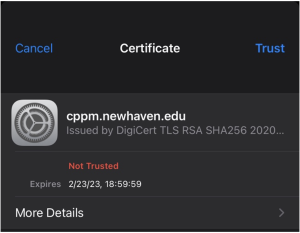
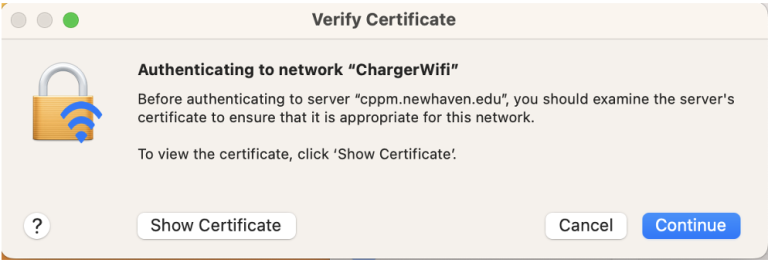
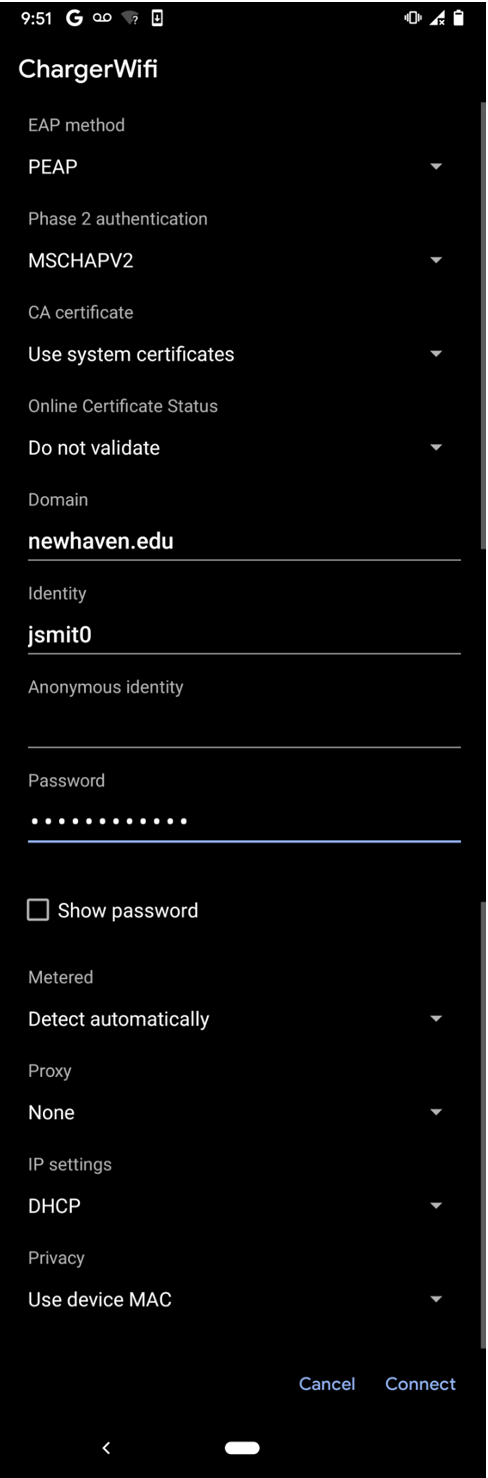
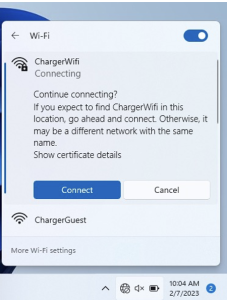
EAP Method: PEAP
Phase 2 Authentication: MSCHAPv2
CA Certificate: Use system certificates
Online Certificate Status: Do not validate
Domain: newhaven.edu
Identity: Your university username without @unh.newhaven.edu
Anonymous Identity: BLANK
Password: your password for your university network credentials
EAP Method: PEAP
Phase 2 Authentication: MSCHAPv2
CA Certificate: Use system certificates
Online Certificate Status: Do not validate
Domain: newhaven.edu
Identity: Your university username without @unh.newhaven.edu
Anonymous Identity: BLANK
Password: your password for your university network credentials