Getting connected to Ethernet
What are my options?
Atwood
- Access to Ethernet through Xfinity Modem
- (Wall ports cannot be activated)
Bethel
- Wall Jacks
- Access Points
Bergami Hall
- Wall Jacks
- Access Point Switch
Bixler
- Wall Jacks
- Access Point Switch (May not be available in every room)
1132 and 1136 Campbell
- Wall Jacks
Celentano
- Wall Jacks (some rooms may not have ethernet, ethernet cannot be added in these rooms)
Chauncey St
- Access Point Switch (First floor only)
Dunham
- Wall Jacks
- Access Point Switch
Forest Hills
- No Ethernet Available
Gerber
- Wall Jacks
- Access Point Switch
Parkview
- No Ethernet Available
Ricardo St
- Access Point Switch (First floor only)
Ruden St
- Wall Jacks
- Access Point Switch
Savin Court
- Access Point Switch
- (Only one access point per unit, access points cannot be moved or relocated)
Sheffield
- Wall Jacks
- Access Point Switch
Westside
- No Ethernet Available
Winchester
- Wall Jacks
- Access Point Switch
Step 1:
ChargerDevices Database
Search for your device. Use Find MAC to get instructions for connecting to Ethernet. Please note that you will receive a password once you register the MAC address. You can ignore this password.
Loading device database…
Sorry, '' not found.
- Try searching for MAC address instructions on Google: Search Google for "[term] find MAC address"
- Once you have the MAC address, register your device here: Register Device Portal
- If you still can't connect or need help, submit a support ticket: Submit Support Ticket
Step 2:
Please follow the instructions under the picture that looks like your ethernet port.
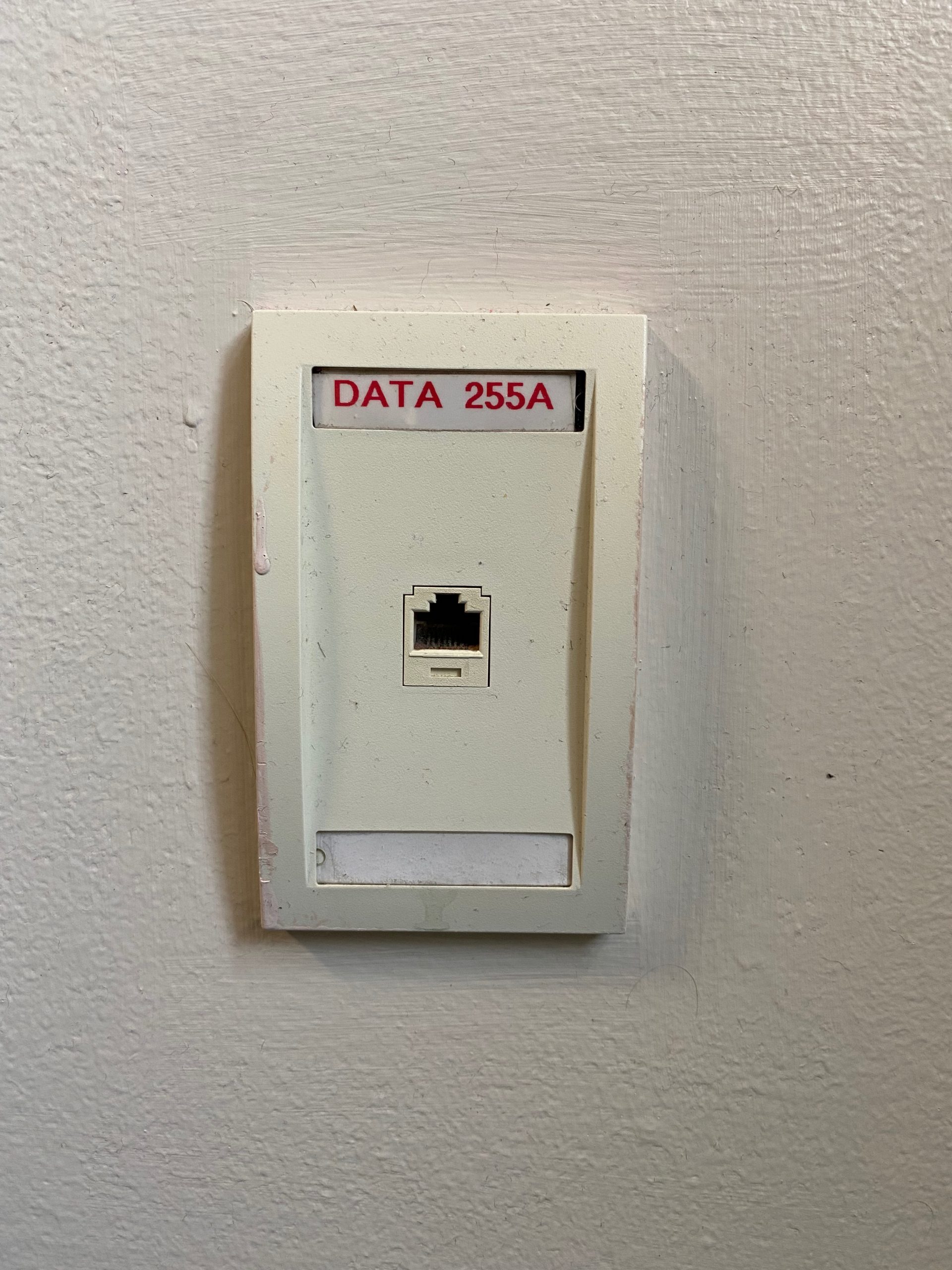
Wall Jack
Wall jacks will need to be activated manually by the Office of Information Technology staff. You can request to have your wall jack activated by clicking on the wall jack image above and submitting the online form.
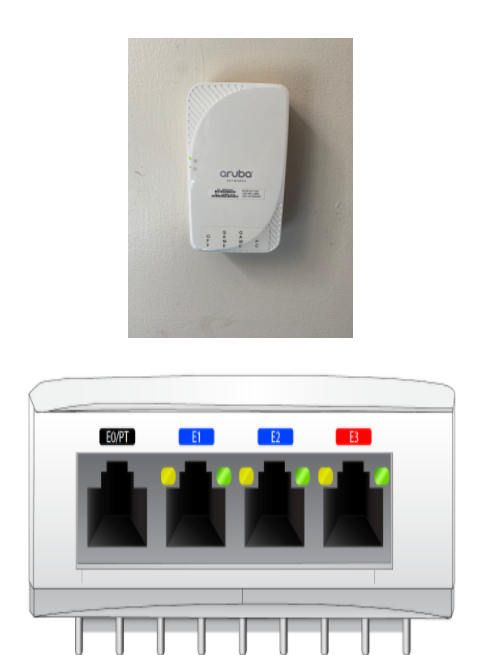
Access Points
Access point switch ports are already activated. Once you have registered your device, you can then plug your device into E1, E2 or E3 port. * Note E0 port cannot be used.