Adobe Applications
Adobe Express is a versatile, all-in-one design and content creation tool that allows users to quickly build professional-quality graphics, videos, and documents using a vast library of templates and assets. It simplifies the creative process with user-friendly features like one-click background removal and drag-and-drop editing, making it accessible for everyone from beginners to experienced creators.
Adobe Express Access - (All students!)
All currently enrolled students can receive free access to Adobe Express, a cloud-based, AI-driven content creation app that enables users to quickly design social media posts, videos, flyers, and logos using templates.
To request access, please follow the below steps:
- Donwload the Creative Cloud Desktop Application
- Once Creative Cloud has been installed on your computer, open the program
- Sign in with your University of New Haven account
- If prompted to choose between Personal or Company or School Account, please choose Company or School Account
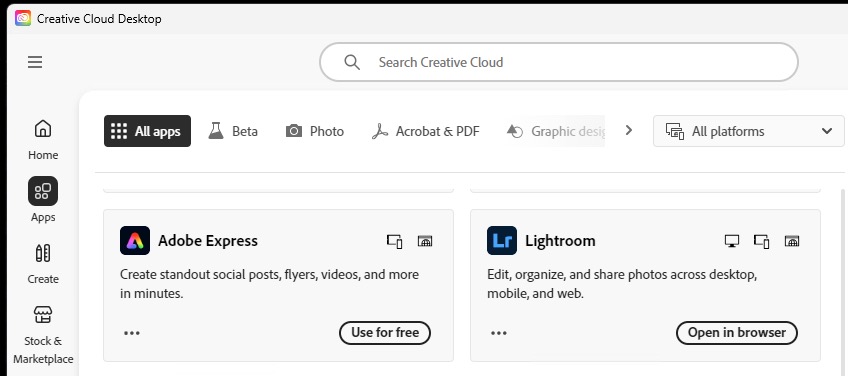
- Once the application loads, click Apps on the left menu, and scroll down until your see Adobe Express and select Use for Free
- This will open the web browser and may ask you to sign in again. If prompted, please be sure to choose Company or School Account
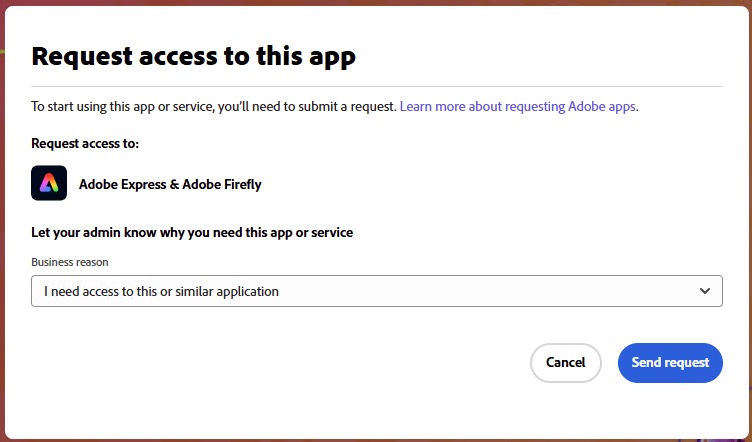
- Click on Adobe Express and click on Request Access
- Click Request
-
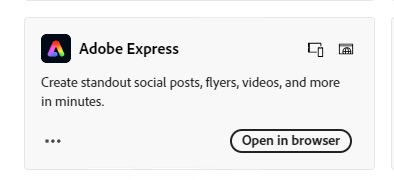
Once approved (this is a manual process and may take up to 5 business days), you will be able to Open in browser from the Creative Cloud Desktop App.
- You are now all set! Enjoy Adobe Express! For more information on what you can do with Adobe Express, click here.
Adobe Creative Cloud - (For students who are taking courses specifically requiring Adobe Creative Cloud Access)
For students who are taking a course that specifically requires you to have Adobe Creative Cloud installed on your personal computer, please follow the instructions to log in below.
- You may receive an email from Adobe asking you to sign in. If you do, please follow the instructions in that email.
- Open the Creative Cloud Desktop App. If you need to download it, please click here.
- Sign in with your University of New Haven account.
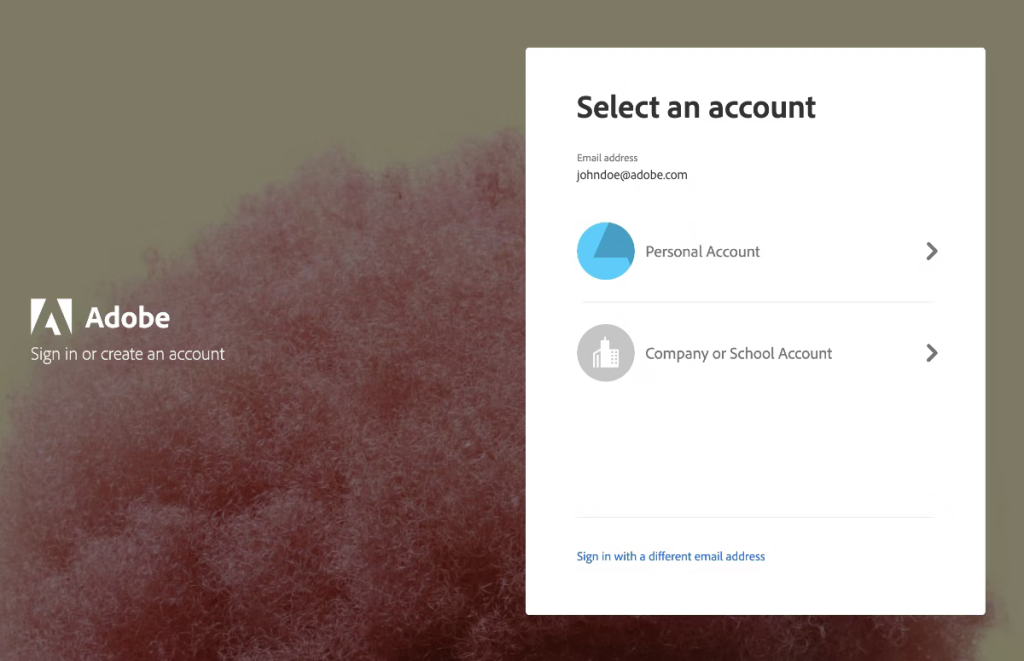
- If prompted to choose between Personal or Company or School Account, please choose Company or School Account.
- You will see a list of apps you can install. Please install the ones that are needed for your course by clicking the Install button.